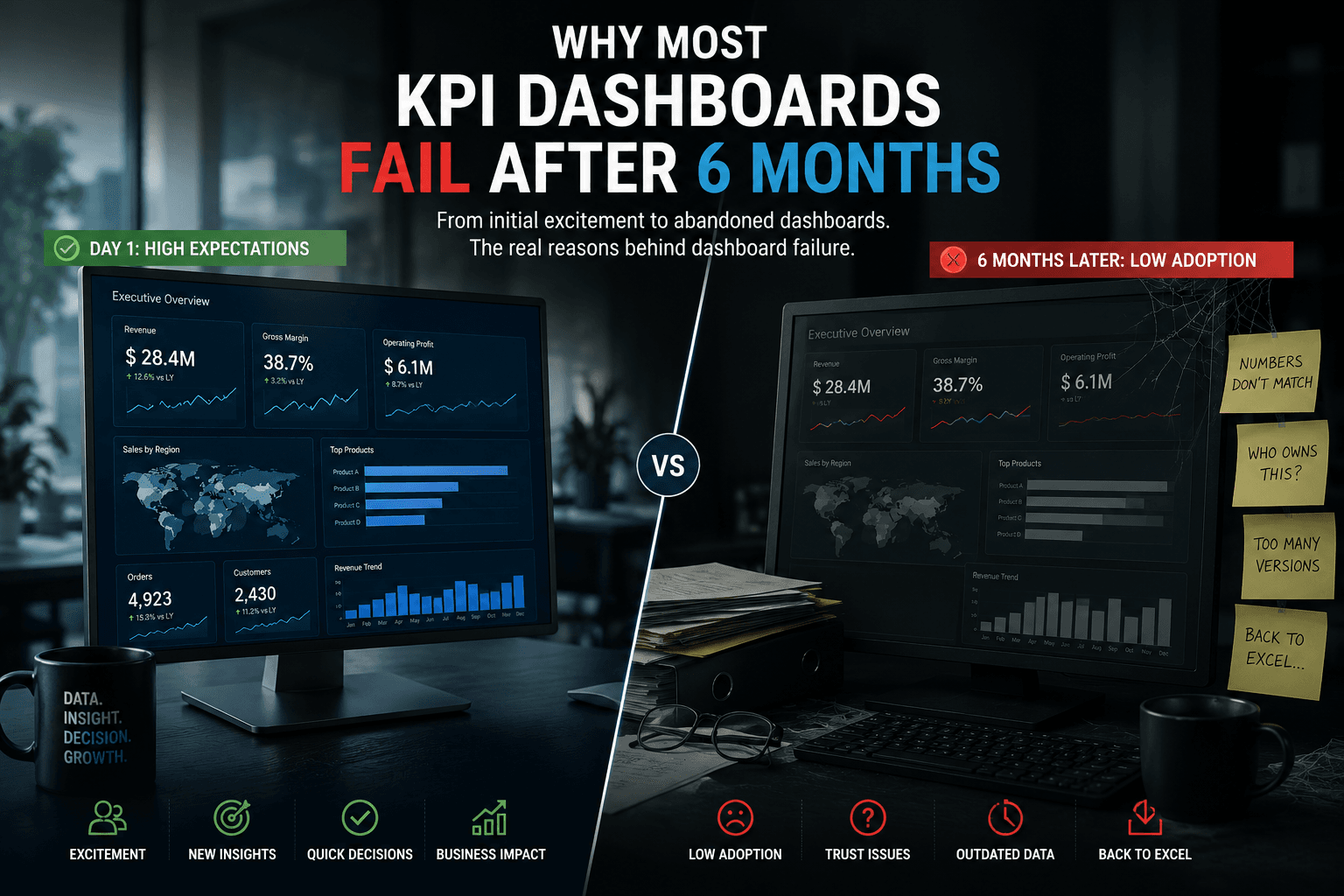
Why BI Reports Show Different Numbers and How to Fix It
One of the most common Business Intelligence problems is also one of the most damaging:
Two reports show different numbers for the same KPI.
Finance has one version of revenue.
Sales has another.
Operations sees a different total.
Leadership asks which dashboard is correct.
The answer is often uncomfortable:
All reports may be technically correct, but they are not using the same business logic.
This is how companies lose trust in BI.
The problem is rarely just a visualization issue.
It usually comes from deeper problems in the data model, KPI definitions, reporting layer, semantic layer or governance process.
The Most Common Causes
1. Different KPI Definitions
The most common reason BI reports show different numbers is simple: teams do not define metrics the same way.
For example, “revenue” can mean:
- booked revenue
- invoiced revenue
- recognized revenue
- paid revenue
- revenue excluding tax
- revenue after discounts
- revenue excluding cancelled invoices
- revenue converted into reporting currency
If the definition is not official and documented, every team may create its own version.
This creates KPI drift.
A dashboard may be technically well built and still produce numbers that are not comparable with another dashboard.
2. Different Date Logic
Date logic is another major cause.
One report may use:
Order Date
Another may use:
Invoice Date
Another may use:
Posting Date
Another may use:
Payment Date
All of these dates can be valid depending on the question.
But if the dashboard title simply says “Monthly Revenue”, users may assume they are looking at the same metric.
They are not.
For finance, posting date may be the reference.
For sales, order date may be more relevant.
For cash collection, payment date matters.
A reliable BI environment must make this logic explicit.
3. Different Filters and Exclusions
Reports often differ because they do not use the same filters.
Examples:
- cancelled transactions included in one report but excluded in another
- internal customers excluded from one dashboard but included in another
- inactive products filtered out differently
- test data removed in one report but not another
- regions grouped differently
- document types interpreted differently
- currencies converted at different rates
- historical corrections handled inconsistently
These differences may look small, but they can create major reporting gaps.
4. Manual Excel Transformations
Many companies use Power BI, cloud platforms and modern tools, but Excel remains hidden in the reporting chain.
A common pattern is:
ERP export → Excel cleanup → manual formulas → Power BI import → dashboard
This creates several risks:
- formulas are not visible to all users
- manual corrections are not documented
- files are duplicated
- report refresh is fragile
- business rules are hidden in spreadsheets
- errors are hard to trace
Manual Excel transformations are often the reason two teams cannot reconcile their numbers.
Excel is useful for analysis.
It should not be the invisible governance layer of the company.
5. No Reporting Layer
A reporting layer prepares data for dashboards and reports.
Without it, each dashboard may connect directly to raw tables or source exports.
This means every report must rebuild:
- joins
- filters
- dimensions
- calculated columns
- measures
- business logic
- data cleaning rules
The result is duplication.
Every dashboard becomes its own mini data project.
This is not scalable.
Read more: Reporting Layer in Business Intelligence: Complete Guide.
6. No Semantic Layer
A semantic layer defines the business meaning of data.
Without it, users see technical fields and disconnected calculations instead of shared business definitions.
A semantic layer helps define:
- official metrics
- reusable measures
- business dimensions
- relationships
- hierarchies
- security rules
- naming conventions
It answers questions like:
What does this KPI mean?
Which filters are applied?
Which business entity owns the definition?
Can this metric be reused?
Read more: Semantic Layer vs Reporting Layer and Semantic Layer Glossary.
7. Poor Data Quality
Sometimes the reporting logic is correct, but the source data is not reliable.
Examples:
- missing customer IDs
- duplicate records
- wrong product categories
- inconsistent currencies
- incomplete invoice statuses
- incorrect region mapping
- old master data
- null values in critical fields
If data quality is not monitored, dashboards may show different numbers because each report handles the errors differently.
One analyst removes null values.
Another keeps them.
One dashboard maps missing categories to “Unknown”.
Another excludes them.
This creates inconsistency.
8. No Ownership of Metrics
Every important KPI needs an owner.
Without ownership, teams do not know who can answer:
- what the metric means
- which source is official
- which exclusions apply
- when the metric changed
- who validates the result
- how new dashboards should reuse it
A metric without ownership becomes a reporting opinion.
A governed KPI becomes a business asset.
Example: Why Revenue Reports Do Not Match
Imagine three dashboards:
Dashboard A: Sales Revenue
Uses:
- order date
- sales orders
- open and completed orders
- local currency
Dashboard B: Finance Revenue
Uses:
- invoice posting date
- invoices only
- cancelled invoices excluded
- reporting currency
Dashboard C: Management Revenue
Uses:
- invoice date
- invoices and credit notes
- consolidated customer groups
- adjusted exchange rates
All three dashboards can be “correct”.
But they answer different questions.
If this is not documented, business users only see contradiction.
The fix is not to delete two dashboards.
The fix is to define:
Which revenue metric is used for which decision?
Then document and structure the reporting layer accordingly.
How to Fix BI Reports That Show Different Numbers
Step 1: Identify the Conflicting Reports
Start by listing reports that create confusion.
For each report, document:
- dashboard name
- owner
- data sources
- refresh frequency
- filters
- KPI definitions
- users
- known issues
This creates visibility.
Without this inventory, teams often debate numbers without knowing how they were produced.
Step 2: Choose the Critical KPIs First
Do not try to govern every metric at once.
Start with the KPIs that create the most business impact.
Common examples:
- revenue
- gross margin
- active customers
- order volume
- receivables
- overdue amount
- conversion rate
- stock value
- project cost
- delivery performance
For each KPI, define the official business meaning.
Step 3: Document the KPI Definition
A strong KPI definition includes:
KPI name
Business purpose
Formula
Source systems
Date logic
Filters
Exclusions
Currency logic
Refresh frequency
Owner
Validation method
Known limitations
This documentation does not need to be complex.
It needs to be clear and accessible.
A BI requirements template can help structure this work:
Step 4: Build or Improve the Reporting Layer
Once definitions are clear, create a reporting layer that dashboards can reuse.
This can be:
- SQL views
- reporting tables
- data marts
- Power BI datasets
- semantic models
- curated warehouse tables
The goal is to stop every dashboard from rebuilding logic independently.
The reporting layer should make the official version of the metric easy to reuse.
Step 5: Build a Semantic Layer
The semantic layer exposes business-friendly definitions to users and report builders.
In Power BI, this often means:
- clean table names
- reusable DAX measures
- properly defined relationships
- hidden technical fields
- business-friendly dimensions
- standard hierarchies
- row-level security rules
- certified datasets
The semantic layer reduces ambiguity.
It also makes future AI-assisted analytics more reliable, because AI tools need clear business context.
Step 6: Add Reconciliation Checks
For critical KPIs, create validation checks.
Examples:
- dashboard total vs source system total
- monthly revenue reconciliation
- duplicate record detection
- missing customer mapping checks
- currency conversion validation
- null value monitoring
- unexpected variance alerts
These checks help detect issues before users lose trust.
Step 7: Create a Governance Process
BI reliability is not a one-time fix.
You need a process for:
- requesting new KPIs
- changing existing definitions
- validating reports
- certifying datasets
- retiring old dashboards
- communicating changes
- documenting ownership
Without governance, the same problem returns.
Practical Checklist
Use this checklist to diagnose your BI reliability problem:
- Do we have an official owner for each critical KPI?
- Are KPI formulas documented?
- Are date rules clear?
- Are filters and exclusions explicit?
- Do dashboards use the same source data?
- Is logic duplicated across reports?
- Are Excel files used as hidden transformation layers?
- Can users trace numbers back to source systems?
- Are Power BI measures reusable?
- Is there a certified dataset or semantic model?
- Are old dashboards retired when new ones are published?
- Are data quality checks automated?
- Do business users know which report is the source of truth?
If the answer is “no” to several of these questions, the problem is not only dashboard design.
It is BI governance.
How This Connects to AI
Many companies want AI agents that can answer business questions.
But if BI reports already show different numbers, an AI agent will face the same problem.
AI cannot reliably explain business performance if the business has not defined:
- official metrics
- trusted data sources
- calculation rules
- permissions
- data relationships
- reporting context
This is why AI-ready data platforms require BI governance first.
Related page: Build an AI-Ready Data Platform.
How Datilog Can Help
Datilog helps companies fix unreliable BI reports by working across both business and technical layers.
Typical support includes:
- BI report audit
- KPI definition workshops
- reporting layer design
- semantic layer modelling
- Power BI model review
- ETL and data mapping
- dashboard governance
- workflow automation around reporting
- AI-ready data foundation roadmap
Related pages:
- Fix Unreliable BI Reports
- Data, BI & ETL Consulting
- Semantic Layer Glossary
- ETL Mapping Template
- SmartBusiness Business Intelligence
FAQ
Why do Power BI reports show different numbers?
Power BI reports often show different numbers because they use different data sources, filters, date logic, measures, relationships or business definitions.
Is the dashboard the problem?
Not always. The dashboard may only reveal deeper issues in KPI definitions, reporting layers, semantic models or data quality.
How do you make BI reports consistent?
Start with official KPI definitions, build a reusable reporting layer, create a semantic model, validate critical numbers and define governance rules.
What is the role of a semantic layer?
A semantic layer defines business meaning and reusable metrics so different reports can use the same definitions.
Can AI fix inconsistent BI reports?
No. AI can help analyze data, but it cannot solve unclear business definitions or poor data quality by itself. AI needs trusted data foundations first.


